Manual
FMtribe will recreate the sound and controls of a classic monophonic analogue groove box on the M-VAVE FM-1. This build has the synth voice, the LFO, the drums and the step sequencer, with the monotribe's step row on the keys: one oscillator (saw, triangle or square) and noise into a two-pole MS-style low-pass filter that self-oscillates, a VCA with three fixed envelopes, an LFO on the pitch, the filter or both, a bass drum, snare and hi-hat, and an 8-step sequencer for all four parts. The ribbon modes, Flux recording and drum rolls come next. The sound is fitted to recordings of real units, so treat it as an estimate until it has been compared side by side with one.
1Install
To try it first, open the emulator. It runs the same code in your browser, with sound, and you can play it with a mouse, a touch screen or your computer keyboard.
To install it from the browser, use Chrome or Edge. Connect the FM-1 by USB, open the installer and press Install. The browser asks once to allow MIDI, so allow it. Don't unplug the cable while it writes.
To install it from a terminal, run python3 base/tools/fm1_install.py fmtribe-VERSION.fwsc from FMtribe's source.
To go back to the stock firmware, use the installer's last section, which writes M-VAVE's own firmware back. You can recover an FM-1 that doesn't start, too. For details, see felucca-bsp's tools/fm1_rescue.sh.
2The screen
| Part | What it shows |
|---|---|
| Header | The page you're on, such as HOME, and BLE and DEV, which light while a computer or a Bluetooth MIDI device is connected. At the right, which page of its button it is, such as 2/2, and while you play a key, the note. After a change, a message shows here for a moment, such as CUTOFF 100. |
| Tabs | The pages' buttons: HOME, VCO (ENV), LFO, DRUM (ARP), SEQ and GLO. The one you're on is lit, and so is its button. |
| K1 to K4 | What the four knobs do on this page. A knob shows a bar and its value; a switch shows its position. Each lights for a moment as you turn it. |
| Below the knobs | On the synth pages, the VCO's WAVE (SELECT) and, on LFO, the LFO's WAVE (ALGO). On DRUMS, the BD, SN and HH pads and their keys, each lighting as it plays. On STEP, the pattern, a row a part. On EDIT, the synth's steps as a piano roll. |
| Keys | The 27 keys, black above white. A held key fills up. |
| Bottom line | The octave, PLAY or STOP and the tempo (/2 with HALF TEMPO, REC when armed, GATE with GATE TIME HOLD), the last MIDI message in, and the volume (MASTER). |
3Controls
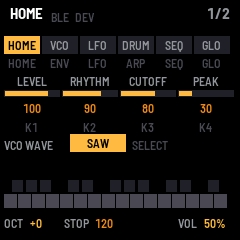
FMtribe starts on HOME: the synth's and the drums' levels and the filter, the knobs you reach for most while playing. The other pages follow the monotribe's panel from left to right: the VCO and VCF on ENV, then the LFO, then the drums and the sequencer. A page's button shows it; press the button again for its next page. The four knobs K1 to K4 edit the page on the screen. A switch moves one position for each click of the knob.
| Page (button) | K1 | K2 | K3 | K4 |
|---|---|---|---|---|
| HOME 1/2 (HOME) | LEVEL | RHYTHM | CUTOFF | PEAK |
| RANGE MOTION 2/2 (HOME) | RANGE | MOTION | ||
| VCO 1/2 (ENV) | NOISE | RANGE | ||
| VCF VCA 2/2 (ENV) | CUTOFF | PEAK | LEVEL | EG |
| LFO (LFO) | RATE | INT | TARGET | MODE |
| DRUMS (ARP) | RHYTHM | BD DECAY | SN DECAY | HH DECAY |
| STEP 1/2 (SEQ) | TEMPO | SWING | STEPS | GATE |
| EDIT 2/2 (SEQ) | STEP | NOTE | GATE | ON |
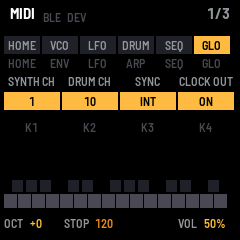
| MIDI 1/3 (GLO) | SYNTH CH | DRUM CH | SYNC | CLOCK OUT |
| GLOBAL 2/3 (GLO) | BLE MIDI | KEY LIGHT | GLOW | PREVIEW |
| DEVICES 3/3 (GLO) | DEVICE |
Three controls do the same job on every page:
| Control | What it does |
|---|---|
| OCT− · OCT+ | The octave, in six steps from −3 to +2, as the monotribe's six octave positions. |
| SELECT | The VCO's WAVE: saw, triangle or square. On the SEQ pages, it moves the step cursor instead. |
| ALGO | On the LFO page, the LFO's WAVE: saw, triangle, square or S&H. On DRUMS, the ROLL RATE. |
| PRESET | On the SEQ pages, the part you're editing: SYNTH, BD, SN or HH. |
| Setting | What it does |
|---|---|
| NOISE | White noise beside the oscillator, into the filter. |
| RANGE | The ribbon's range, on VCO and on HOME 2/2. On the monotribe, NARROW and WIDE make the ribbon slide continuously from note to note. The FM-1's keys are separate, so FMtribe slides with a glide instead: KEY jumps from note to note; NARROW glides fast (about 60 ms); WIDE glides slowly (about 300 ms). The glide happens when you play a key while still holding another, or when a sequenced note runs into the next; a fresh key after letting go starts on its own note. |
| MOTION | MOTION VOLUME played back, on or off: see The sequencer. |
| WAVE (SELECT) | The oscillator: saw, triangle or square. |
| CUTOFF | The filter's cutoff, from about 80 Hz to about 18 kHz. |
| PEAK | The filter's resonance. Near the top, the filter whistles on its own at the cutoff while a note plays. |
| LEVEL | The synth's volume. |
| EG | The envelope. DECAY jumps to full when a note starts and dies away over about 1.3 seconds, even while you hold the key. GATE stays full while you hold it. ATTACK rises over about 1.3 seconds while you hold it. All three close quickly when you let go. |
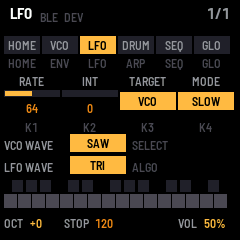
| RATE | The LFO's speed: about 1 Hz to 5 kHz in FAST, 0.05 Hz to 18 Hz in SLOW and 1 SHOT. |
| INT | How much the LFO moves the pitch or the filter, from none at 0. At the top, the pitch swings an octave either way and the cutoff three octaves. |
| TARGET | What the LFO moves: VCO (the pitch), VCO+VCF (both) or VCF (the cutoff). |
| MODE | FAST and SLOW run all the time. FAST and 1 SHOT start again with each new note. 1 SHOT plays half a cycle when a note starts and then stops, like a second envelope. |
| WAVE (ALGO) | The LFO: saw (falling), triangle, square, or S&H, a new random level each cycle. |
| RHYTHM | The drums' volume. |
| BD DECAY · SN DECAY · HH DECAY | Each drum's decay, as the popular hardware decay mods give it. 32 is the stock decay; lower is shorter, higher is up to about 15 times as long. |
| SYNTH CH | The MIDI channel the synth plays on and the keys send on, 1 to 16 (1 at first). |
| DRUM CH | The MIDI channel the drums play on and send on, 1 to 16 (10 at first). |
| SYNC | INT runs at TEMPO; MIDI follows MIDI clock, start and stop from a computer or another instrument. |
| CLOCK OUT | Sends MIDI clock, start and stop, so other gear follows FMtribe. |
| BLE MIDI | Bluetooth MIDI on or off. |
| KEY LIGHT | The keys' lights: OFF; HELD, the keys you hold; or GUIDE, those and the keys that do something special on the page you're on, such as the drum pads and the step LEDs. |
| GLOW | How brightly the unlit buttons and the guide keys glow: OFF, LOW or HIGH. |
| PREVIEW | DRUM PREVIEW, the monotribe's Global setting 6. ON (at first): the BD, SN and HH part keys play their drum as they pick it. OFF: they pick the part silently. |
| DEVICE | On DEVICES, the Bluetooth MIDI device to connect to: see MIDI and audio. |
| Button | What it does |
|---|---|
| Keys | Play the synth. The last key you pressed sounds, and each new key starts the envelope again, as the monotribe's ribbon does. Let go of it while holding another, and the pitch goes back to the one still held. The volume doesn't follow how hard you play, as on the monotribe. Each key also sends its note on the synth's channel. On STEP, the keys are the sequencer's buttons instead. |
| MASTER | Sets the volume. |
| SAVE | Saves every setting, the octave and the pattern. SAVE lights while there's something to save. On the DEVICES page, SAVE connects to a Bluetooth MIDI device instead. |
| PLAY · REC | Start and stop the sequencer; record into it. See The sequencer. |
| FX | ROLL on or off: see Drum rolls. FX lights while ROLL is on. |
| SEL · EDIT | Show their names, and do nothing else yet. PRESET does nothing off the SEQ pages. |
The drums
The DRUMS page (ARP) has RHYTHM and a decay for each drum. Its first three black keys, F♯3, G♯3 and A♯3, play the bass drum, snare and hi-hat, and glow to show it (KEY LIGHT on GUIDE). Every other key plays the synth, black or white, so you can play both at once. With REC on, the pads record their drums. The part keys on STEP play and record the drums too, as the monotribe's part buttons do.
The BD, SN and HH DECAY knobs aren't on a stock monotribe, which has only RHYTHM for the drums. They copy a popular hardware mod; at 32, each drum sounds as stock.
#### Drum rolls
The monotribe Ver.2 can roll a drum: hits repeated fast, from 8th notes to 128th notes, in time with the tempo. FMtribe rolls two ways:
- On DRUMS, with ROLL. Press FX, or the rightmost black key (F♯5), to turn ROLL on; FX and F♯5 light. Now a pad rolls its drum for as long as you hold it, playing or stopped. ALGO sets the rate: 8TH, 16TH, 16T (16th triplets), 32ND, 32T, 64TH or 128TH. Press FX or F♯5 again for single hits.
- On STEP, the Ver.2 way. Pick a drum (F♯3, G♯3 or A♯3, or PRESET) and, while the pattern plays, hold GATE TIME (F♯4) and touch the white keys: the leftmost rolls in 8ths, the rightmost in 128ths. The roll stops when you let go of GATE TIME. With the synth picked, GATE TIME sets gate times instead.
With REC on, a roll is recorded into each step of its drum as the pattern passes, and plays back from then on. INITIALIZE RHYTHM and INITIALIZE ALL clear the rolls with the drums.
The sequencer
FMtribe plays one pattern of 8 steps, a 16th note each, for four parts: SYNTH, BD, SN and HH, as the monotribe does. Each step has a second slot half-way through it, for the drums' in-between hits and, with 16-STEP SYNTH, the synth's in-between notes. Each part has its own active steps, so a part with fewer steps cycles against the others.
PLAY starts the pattern from step 1 and stops it. PLAY lights green while it plays, red while it records.
#### STEP: the monotribe's step row, on the keys
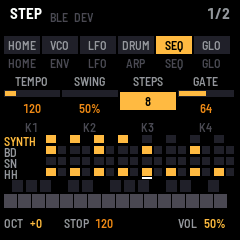
On STEP (SEQ, 1/2), the keys become the monotribe's row of buttons. The white keys are the step buttons, and their lights are the step LEDs. The black keys are the buttons beside them. An 8-step part is spread over the whole keyboard, with a blank white key between each step and the next; with 16-STEP SYNTH, the synth uses every white key.
| Key | Monotribe button | What it does |
|---|---|---|
| White keys F3, A3, C4, E4, G4, B4, D5, F5 | Steps 1–8 | Switch the part's step on or off. A synth step switched on takes the last note you played. The white keys between them do nothing. |
| All 16 white keys, F3 to G5 | Steps 1–16 | With 16-STEP SYNTH and the synth picked, each white key is a step. |
| F♯3 · G♯3 · A♯3 | BD · SN · HH | Pick the part, and play its drum (with PREVIEW on). Hold one and press a step for a hit half-way through that step. |
| C♯4 | SYNTH | Pick the synth part. PRESET picks the part too. |
| D♯4 | ACTIVE STEP | Stopped, hold it and press steps to switch them on or off for playback; one step always stays on. While the pattern plays, hold it and touch the white keys for MOTION VOLUME. |
| F♯4 | GATE TIME | Hold it and touch the white keys to set gate times (with a drum picked, to roll it); stopped, it's the multi-function key. See Setting gate times and Drum rolls. |
| F♯5 | — | ROLL on or off, as FX. |
With KEY LIGHT on GUIDE, the white keys show the part, as the monotribe's step LEDs do:
| Light | Meaning |
|---|---|
| Off | A step that doesn't play (switched off with ACTIVE STEP), and the blank keys between the steps. |
| Dim | An active step with nothing on it. |
| Half-lit | A step with a note or a hit. |
| Lit | The step playing now. Stopped, on the synth part, the step cursor. |
While you hold ACTIVE STEP, the active steps are lit instead. The part keys glow, with the part you're editing lit. ACTIVE STEP, GATE TIME and ROLL (F♯5) glow; GATE TIME stays lit while GATE TIME HOLD is on, and F♯5 while ROLL is on. The free black keys stay dark.
The knobs on STEP set TEMPO (10 to 600 BPM), SWING (every second step later, from straight, 50 %, to a triplet feel, 67 %), STEPS (8 or 16, the same as 16-STEP SYNTH) and GATE, the gate time a new synth step gets.
#### The multi-function key
When the sequencer is stopped, hold GATE TIME (F♯4) and press a step key (F3, A3, C4, E4, G4, B4, D5 or F5 for steps 1 to 8), as on the monotribe Ver.2:
| Step | Function |
|---|---|
| 1 | INITIALIZE ALL: clears the whole pattern. |
| 2 | INITIALIZE SYNTH: clears the synth part. |
| 3 | INITIALIZE RHYTHM: clears the drums. |
| 4 | INITIALIZE ACTIVE STEP: turns every part's steps back on. |
| 5 | SAMPLE & HOLD: the LFO's WAVE to S&H, or back. |
| 6 | 16-STEP SYNTH: on or off. |
| 7 | GATE TIME HOLD: on or off. Recording keeps the gates already recorded. See Setting gate times. |
| 8 | HALF TEMPO: the sequencer at half the tempo shown, on or off. |
#### EDIT: one step at a time
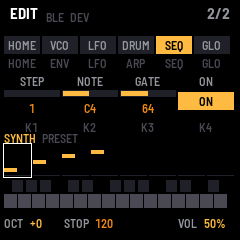
EDIT (SEQ, 2/2) sets one part's steps exactly, which the monotribe can only do by playing them in. Turn PRESET to pick the part; its name shows above the steps. For the synth, the screen shows a piano roll: each note at its pitch, as long as its gate. For a drum, it shows all 16 of its slots, each step and its half, with a block for each hit. The box is the step cursor.
| Control | What it does |
|---|---|
| PRESET | The part: SYNTH, BD, SN or HH. |
| SELECT or K1 STEP | Moves the cursor a step at a time (a half-step with 16-STEP SYNTH, and always for a drum: 3+ is half-way through step 3). |
| Keys | For the synth, play a note to put it in the cursor's step and switch that step on. The cursor moves on to the next step, so you can type in a melody. For a drum, the keys just play the synth. |
| K2 NOTE | The synth step's note, a semitone a click. A drum shows -. |
| K3 GATE | The synth step's gate time, from 1.4 % of the step to 100 %, then TIE. A drum shows -. |
| K4 ON | Whether the step plays: for a drum, whether it hits. |
#### MOTION VOLUME
The monotribe Ver.2 can record the synth's volume into the pattern, step by step. FMtribe does it two ways:
- On the keys, the Ver.2 way. While the pattern plays, hold ACTIVE STEP (D♯4) and touch the white keys: the leftmost (F3) is silent and the rightmost (G5) full, with the keys between in even steps. You hear it at once. Let go of ACTIVE STEP and the synth goes back to its recorded levels. With REC on, each synth step keeps the level it plays with.
- With LEVEL. With REC on and the pattern playing, turn LEVEL (K1 on HOME, or K3 on VCF VCA): each synth step takes LEVEL's value as it passes.
A step with a recorded level plays at that level instead of LEVEL; the others play at LEVEL. MOTION on HOME 2/2 turns the recorded levels off and on without losing them. INITIALIZE SYNTH and INITIALIZE ALL clear them.
#### Recording
To record, press REC (it lights), then PLAY. While REC is on, the keys play and record the synth on any page, landing on the nearest step (or half-step with 16-STEP SYNTH), and how long you hold a note sets its gate time. The DRUMS page's pads, and the BD, SN and HH part keys on STEP, play and record the drums. Recording adds to the pattern; to start again, use INITIALIZE. Press REC again to stop recording.
The pattern is kept with the settings when you press SAVE.
4Setting gate times
The gate time is how long each synth note sounds, as a share of its step. At 1.4 % a note is a short blip; at 100 % it fills its step. TIE, set on EDIT, lets a note run on into the next one without a new attack.
   1.4 %          50 %                 100 %
  |▌      |      |████    |           |████████|
   step 1          step 2               step 3
There are three ways to set it.
Play it live, the monotribe way. On STEP, while the pattern plays, hold GATE TIME (F♯4) and touch the white keys. They work as the monotribe's ribbon does with its GATE TIME button: the leftmost white key (F3) is the shortest gate, 1.4 %, and the rightmost (G5) is 100 %, where each note runs into the next, with the keys between in even steps. Every synth note takes that gate while you hold GATE TIME. Let go, and the notes go back to their own gates. Nothing is stored.
Record it. Press REC, then PLAY. Hold GATE TIME and touch a white key: each synth step takes that gate as it plays, and keeps it. Touch other keys as the pattern goes round to give each step its own gate. Let go of GATE TIME, and press REC again to stop recording.
Keep them while you re-record the notes. With the sequencer stopped, hold GATE TIME and press step 7 to turn GATE TIME HOLD on, as on the monotribe Ver.2 (GATE shows in the bottom line, and the GATE TIME key stays lit). Now when you record new notes with REC, the steps keep the gate times already recorded, however long you hold each key; only the pitch changes. A step that had no note yet takes GATE from STEP. Turn GATE TIME HOLD off the same way.
Set one step exactly. On EDIT, move the cursor to the step with SELECT and turn K3 GATE. It goes from 1.4 % to 100 %, then TIE. New steps you switch on take the gate set by GATE on STEP.
5Saving
Press SAVE to keep every setting, the octave and whether Bluetooth is on. They come back the next time the FM-1 starts. SAVE stays lit while there are changes to save. Settings saved by an earlier FMtribe don't carry over, since this version keeps more of them.
6MIDI and audio
MIDI comes in over USB, Bluetooth and the TRS jack, on the monotribe's own map. The channels are set on the MIDI page (GLO, 1/3); at first the synth is on 1 and the drums on 10.
| Message | What it does |
|---|---|
| Notes on the synth's channel | Play the synth. Velocity is ignored. |
| Pitch bend on the synth's channel | Bends the synth up to 2 semitones either way. |
| Notes 36, 40, 42 on the drums' channel | Play the bass drum, snare and hi-hat. |
| CC 1 · CC 16 | LFO INT · LFO RATE. |
| CC 80 | EG: about 32 DECAY, 64 GATE, 96 ATTACK. |
| CC 81 | LFO TARGET: 32 VCO, 64 VCO+VCF, 96 VCF. |
| CC 82 | LFO MODE: 32 FAST, 64 SLOW, 96 1 SHOT. |
| CC 83 | LFO WAVE: 32 saw, 64 triangle, 96 square, 127 S&H. |
| CC 7 | LEVEL. |
| Clock, start, stop | With SYNC on MIDI (MIDI, GLO 1/3), the sequencer follows them. |
The CCs are read on the synth's channel. The sequencer sends its notes out too, on the same channels, and MIDI clock, start and stop with CLOCK OUT on. The keys send notes, with their velocity and poly aftertouch, out over USB and Bluetooth on the synth's channel, and the drum pads and part keys send their drums on the drums' channel.
Over Bluetooth, FMtribe shows up as "FM-1". On a Mac, open Audio MIDI Setup, choose Window > Show MIDI Studio, click the Bluetooth button, then click Connect next to FM-1. On an iPad or iPhone, connect from a music app's Bluetooth MIDI settings.
To switch Bluetooth off, set BLE MIDI to OFF on GLOBAL 2/3 (GLO). The FM-1 stops advertising and drops any connection. To keep your choice for the next time the FM-1 starts, press SAVE.
To connect FMtribe to a Bluetooth MIDI device, such as a keyboard or a controller, first put the device in its pairing or advertising mode. Then open the DEVICES page (GLO, pressed until it shows 3/3): the FM-1 looks for devices while the page is up. Turn K1 to pick the device by its name, and press SAVE to connect. DEV in the header lights while it's connected, and the bottom line shows the last message it sent. To disconnect, press SAVE on that page again.
The keys sense how hard you play them, with no change to the FM-1. The 20 lowest keys (F3 to C5) give velocity and pressure. The top seven give velocity only.
Over the USB cable, the FM-1 is also a sound card. Your computer can record what it plays from an input named "FMtribe FM-1". It can also play through the FM-1: choose "FMtribe FM-1" as the output, and you'll hear it from the FM-1's speaker and headphones, mixed with the FM-1's own sound, at MASTER's volume.
7The screen mirror
The site's Mirror page shows the FM-1's screen and panel live on your computer, in Chrome or Edge, over the USB cable. Press Connect and allow MIDI. Press Control to play the FM-1 from the page: click its buttons and keys, and scroll over a knob to turn it. Close other programs that use the FM-1's MIDI port first.
8The screen reader
FMtribe tells a screen reader what's on its screen, through the FM-1 Screen Reader. When the reader starts listening, it hears the name and the settings, and then each change as it happens. The emulator does the same, with your own screen reader or with its built-in voice.
9Troubleshooting
If you hear no sound, turn MASTER and LEVEL up, and CUTOFF too: with CUTOFF low and PEAK low, the filter lets little through. With the DECAY envelope, a note dies away after about a second even while you hold the key; on the VCF VCA page (ENV, 2/2), set EG to GATE for a note that lasts. For the drums, turn RHYTHM up on the DRUMS page (ARP). If the pitch wobbles, turn INT down on the LFO page.
If the installer doesn't find the FM-1, use Chrome or Edge, and allow MIDI when the browser asks. Close any other programs that use the FM-1's MIDI port.
If the FM-1 doesn't start after an install, it starts in SAFE MODE after two failed starts. There's no sound, but USB works, so the web installer can reach it. Install again, or put the stock firmware back from the same page. Press PLAY to try starting the firmware again. If even safe mode fails twice, the FM-1 drops into the chip's own update mode.
To put the FM-1 in update mode, hold REC while you switch it on. If you installed m-bootloader with the web installer, the installer can reach the FM-1 from there, and holding PLAY instead opens m-bootloader's recovery menu. Without m-bootloader, REC starts the chip's own update mode, which only the rescue can reach. For details, see felucca-bsp's tools/fm1_rescue.sh.